Targeting Subscribers with Segments (AND/OR Multi-Criteria Guide)
📁 User Guides
🕐 Updated 1 month ago
 HyperPush X Docs
Push notifications deliver the highest engagement and click-through rates when they are contextual and personalized. Sending every notification blast to your entire subscriber list leads to fatigue, opt-outs, and lower conversion.
With HyperPush's Advanced Multi-Criteria Segmentation Engine, you can segment your audience based on geo-location, device hardware, operating system, browser, language, and custom attributes.
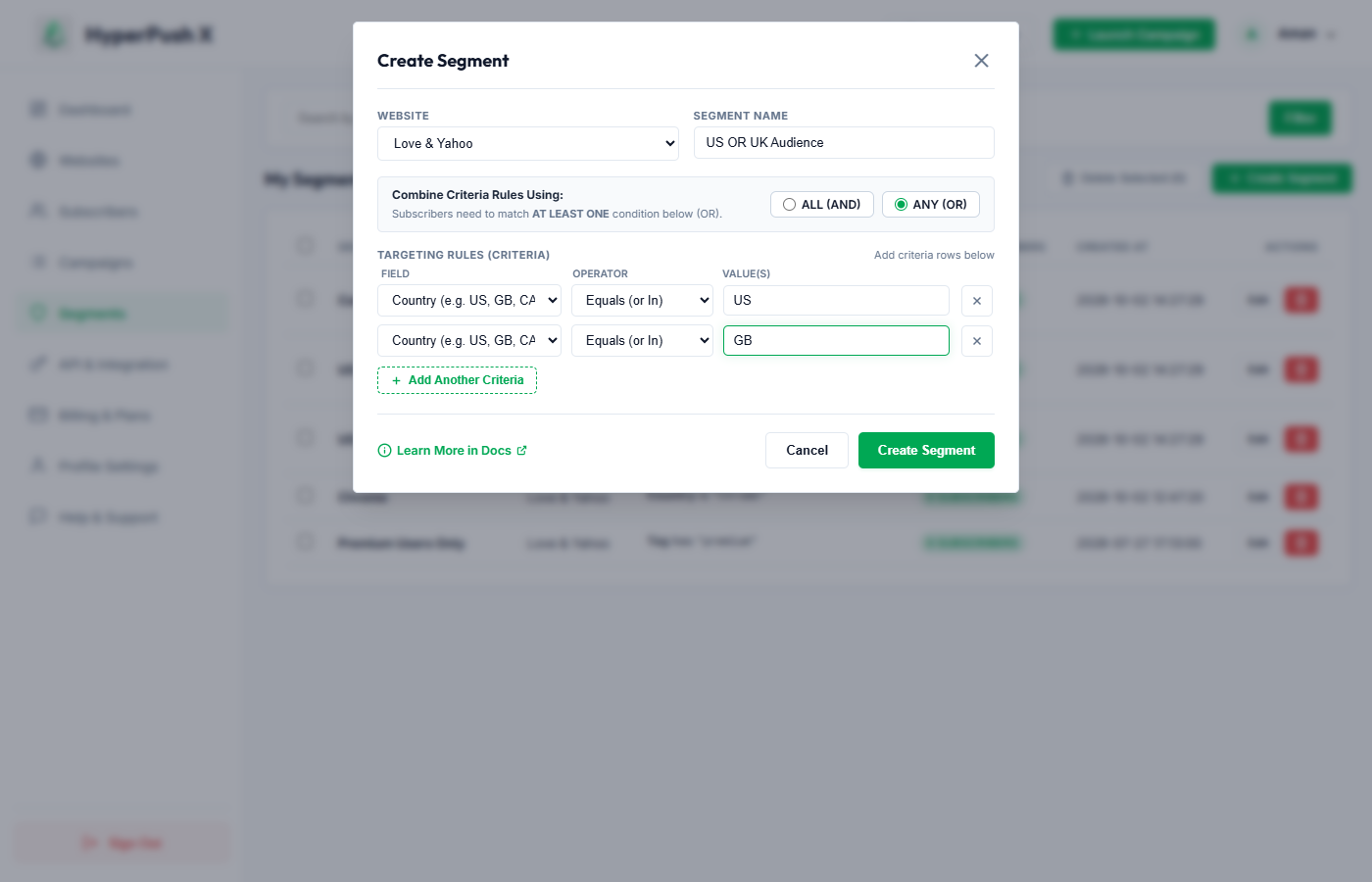
When creating a segment, you can combine multiple targeting conditions using two distinct logical operators:
Subscribers must satisfy every single rule in the list to be included.
Country equals USDevice equals mobileSubscribers will qualify if they satisfy at least one condition in your list.
Country equals USCountry equals GBTo make segment setup even faster, HyperPush supports comma-separated lists within a single condition row when using the Equals operator:
Country | Operator: Equals | Value: US, GB, CA, AUDevice | Operator: Equals | Value: mobile, tablet| Target Field | Description | Supported Operators | Example Values |
|---|---|---|---|
| Country | 2-letter ISO country code | =, !=, contains |
US, GB, CA, DE, AU, FR, JP |
| Browser | Subscriber web browser | =, !=, contains |
Chrome, Safari, Firefox, Edge |
| Device | Hardware form factor | =, != |
mobile, desktop, tablet |
| Operating System | Operating system | =, !=, contains |
Windows, Mac OS, Android, iOS |
| Language | Browser locale code | =, !=, contains |
en, es, fr, de, ja |
| Timezone | Subscriber timezone | =, !=, contains |
America/New_York, Europe/London, UTC |
| Visited URL | Pages user browsed | contains, =, != |
/pricing, /checkout, /blog |
| Custom Tag | Custom tags pushed via SDK | =, !=, contains |
vip_member, premium_plan |
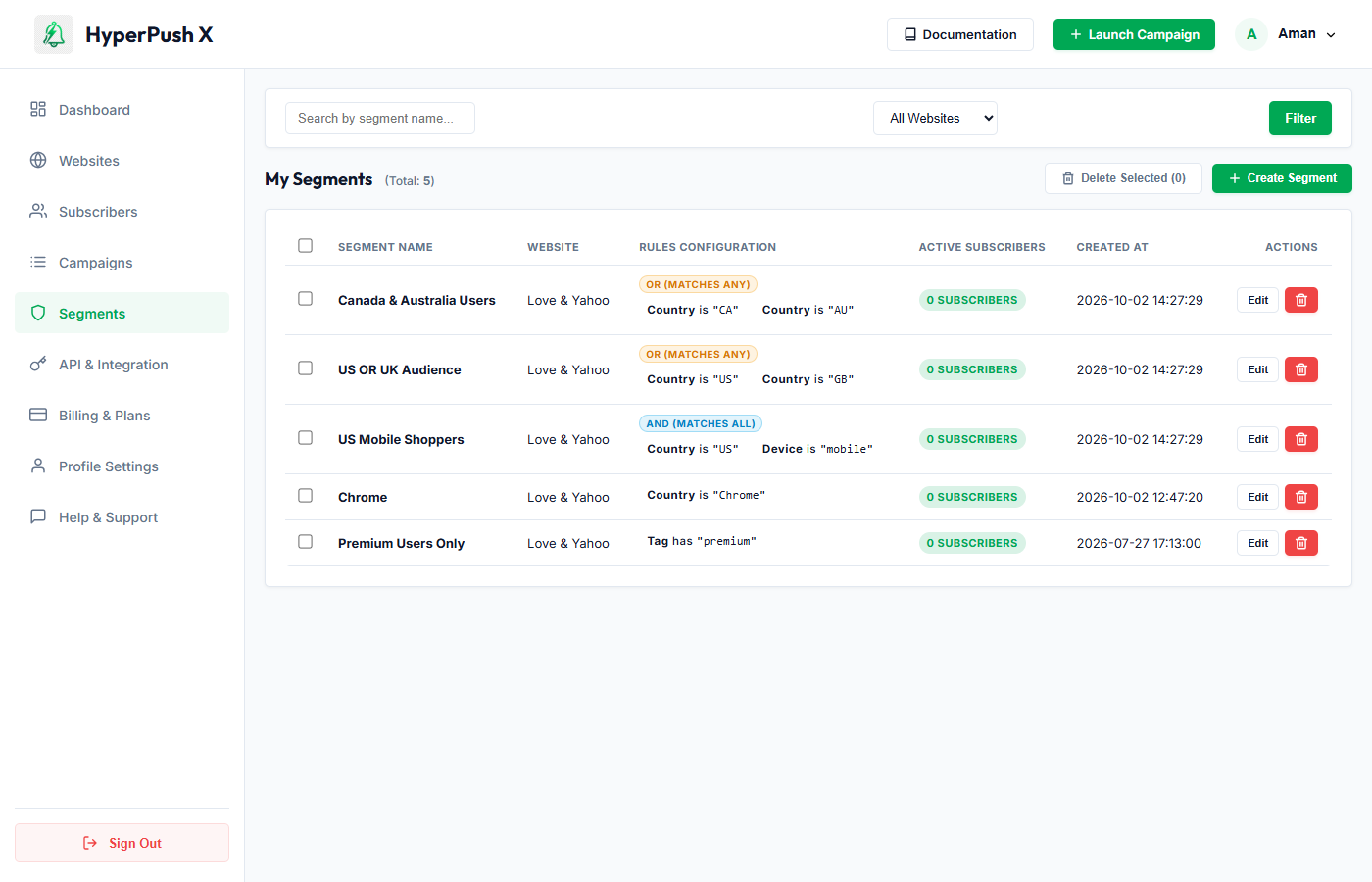
In your Segments Roster, each segment clearly displays its logic rule badges:
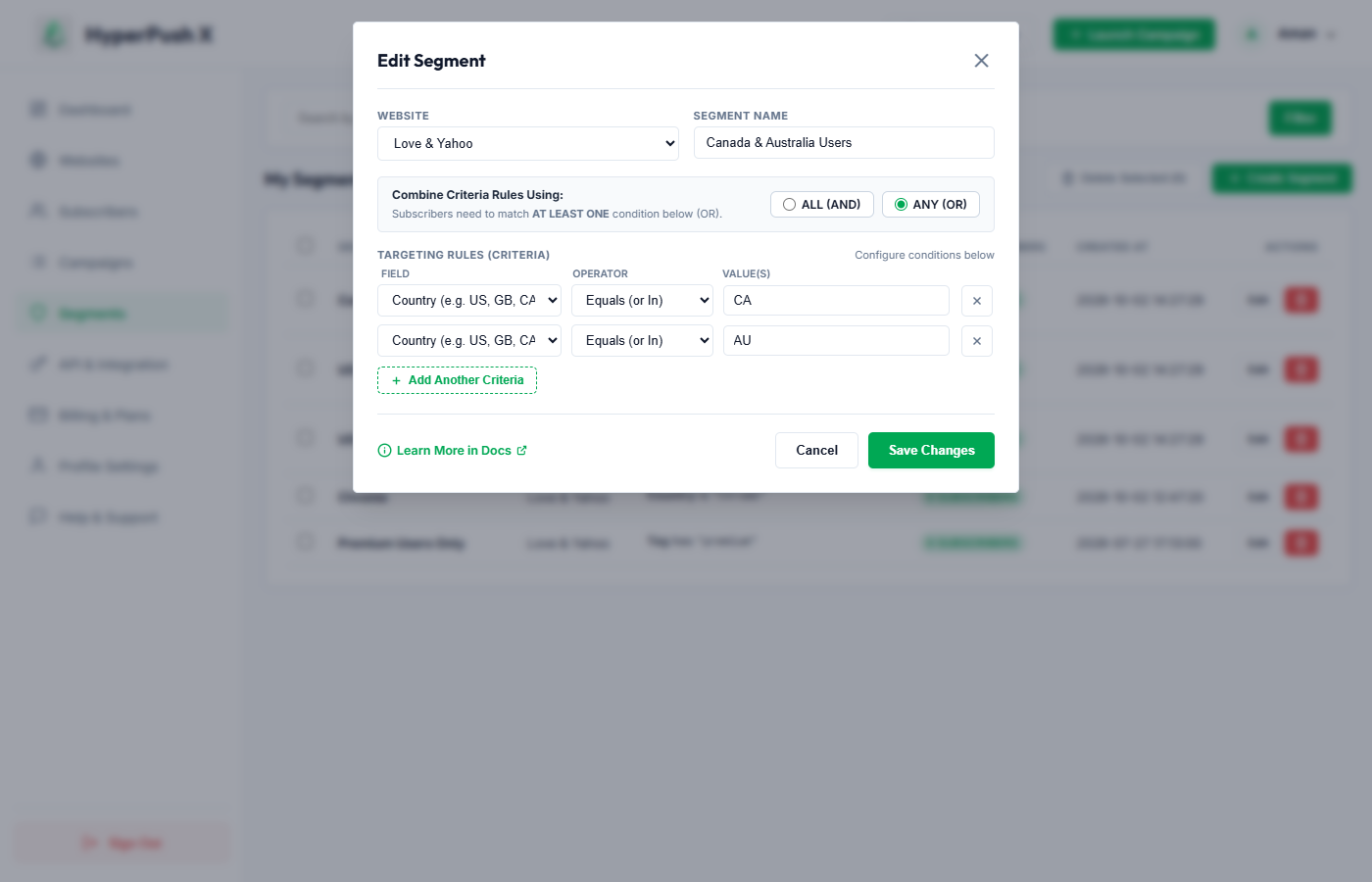
You can modify existing segments at any time. When editing a segment, all existing criteria rows and the match logic are loaded into the editor:
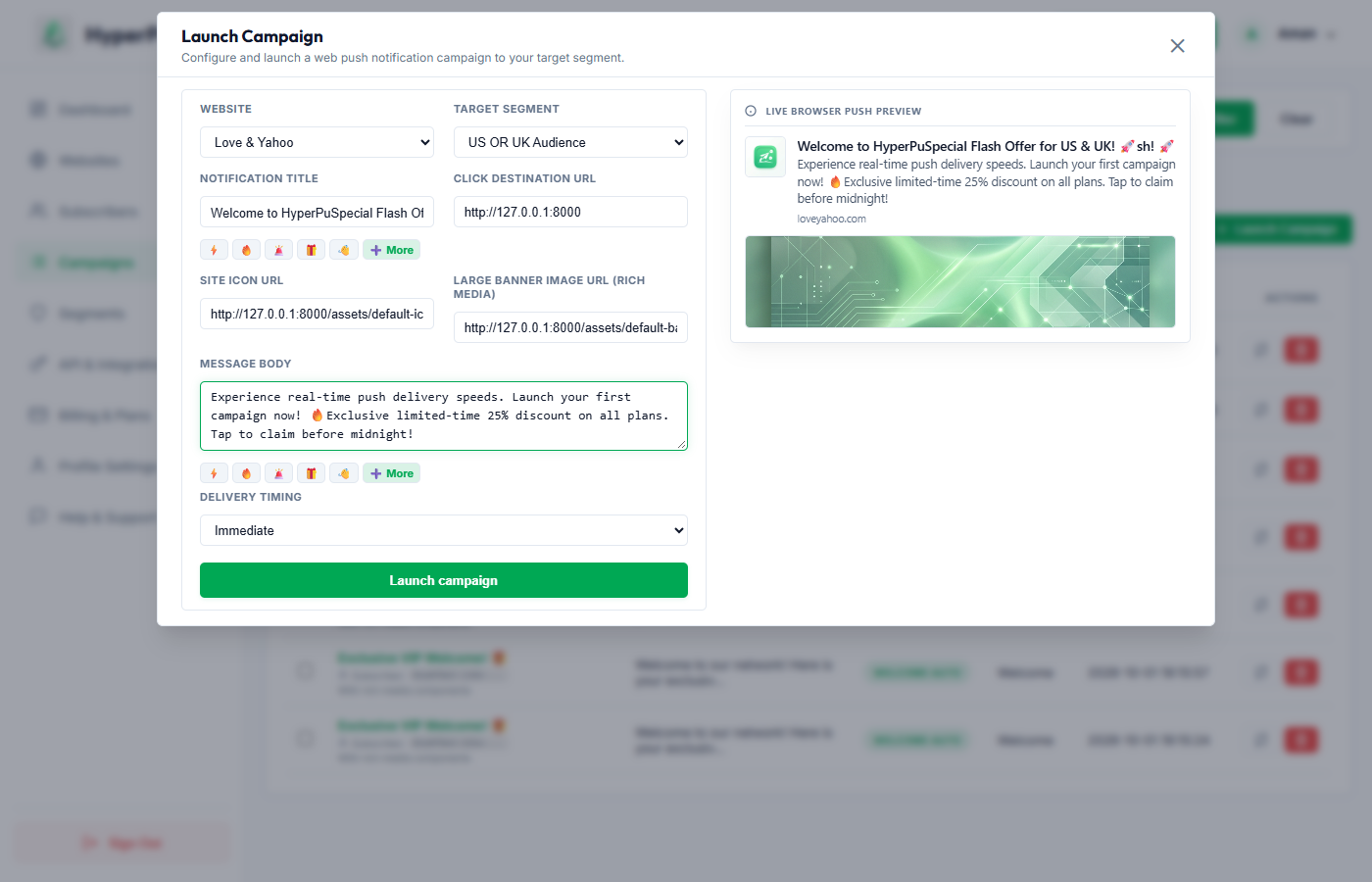
When composing a push campaign:
 Notification Inbox
3