How to Clear Browser Cache, Service Worker Data & Reset Push Notifications (Desktop & Mobile)
📁 Getting Started
🕐 Updated 12 hours ago
 HyperPush X Docs
When developing, testing, or troubleshooting Web Push notifications and Progressive Web Apps (PWA), browsers aggressively store cached files, active background Service Workers, offline Cache Storage, and permission states (Allow / Block).
If you accidentally clicked "Block", if updates are not reflecting, or if you need to test re-subscribing from a completely clean state, this guide covers both:
chrome://inspect).[!CAUTION]
🚫 Important: Never Test Push Notifications in Incognito or Private Windows!
All major browsers (Google Chrome, Apple Safari, Microsoft Edge, Mozilla Firefox) permanently disable Web Push notifications and PWA installations in Incognito / Private mode by design:
- No Subscription Allowed: Browsers disable background push keys in Incognito mode so websites cannot track users across sessions.
- Permission Prompts Disappear: The browser will either automatically suppress notification permission prompts or keep them disabled.
- Data Erased on Tab Close: Even if temporary memory holds data, closing the incognito tab instantly deletes all keys and subscriptions.
👉 Always use a standard, regular browser window when subscribing to or testing push notifications!
For everyday users or quick resets, you can clear cached data and reset notification permissions directly from the URL address bar.

Ctrl + F5 (Windows) or Cmd + Shift + R (Mac). Click "Allow" when the prompt reappears!When you need to completely remove the background Service Worker (sw.js), empty Cache Storage, and erase IndexedDB databases, use Chrome's Application panel.
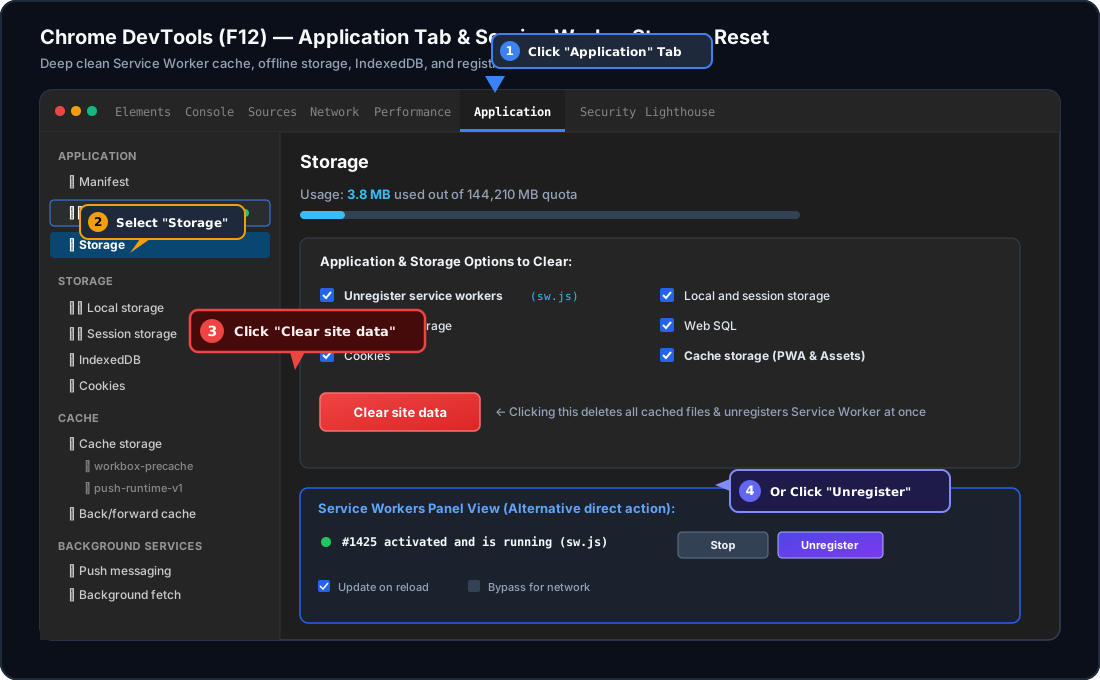
F12 on your keyboard, ORCtrl + Shift + I (Windows / Linux) or Cmd + Option + I (Mac), ORIn the top navigation bar of DevTools, click on the Application tab (see Pointer 1 in the screenshot above).
(If your DevTools window is narrow, click the >> icon to reveal hidden tabs and select Application).
In the left sidebar under the Application heading:
If you only want to stop and remove the Service Worker without clearing other website cookies:
sw.js).Mobile devices also cache Service Workers and offline PWA data. Here is how to clear them on phone or through your PC.
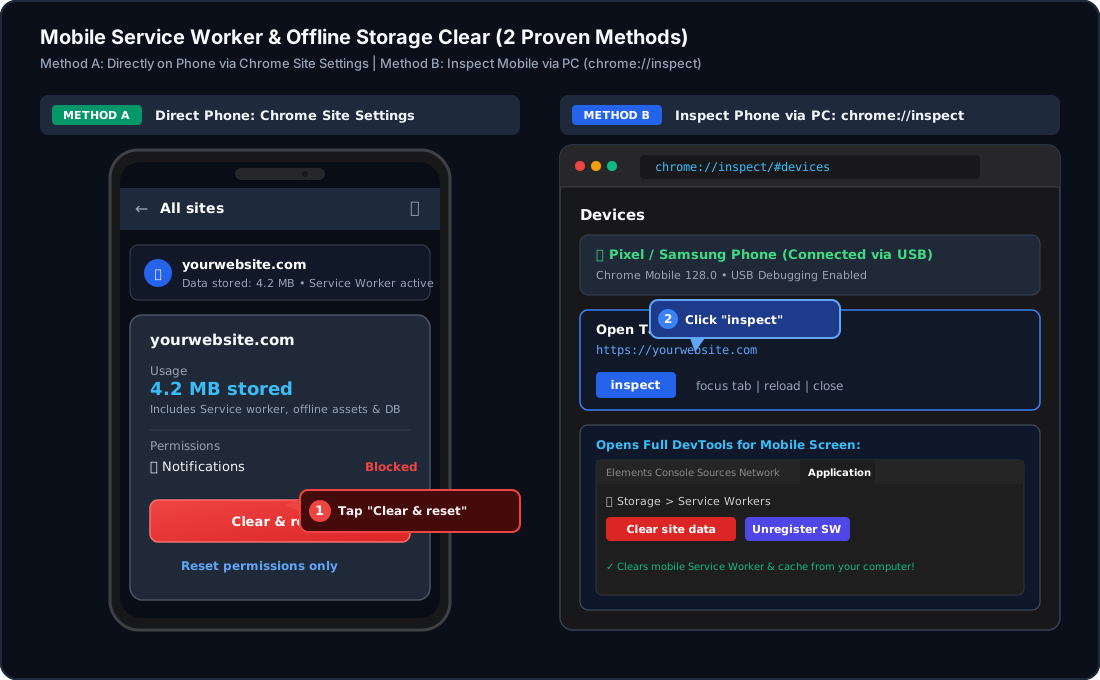
⋮ menu in the top-right corner and select Settings.yourwebsite.com).[!TIP] Complete Chrome Android App Clear: You can also long-press the Chrome app icon on your home screen ➔ tap App info (ⓘ) ➔ tap Storage & cache ➔ tap Clear cache.
chrome://inspectDid you know you can open the full desktop Chrome DevTools (Inspect) Application tab for a webpage running on your physical Android phone?
chrome://inspect/#devices
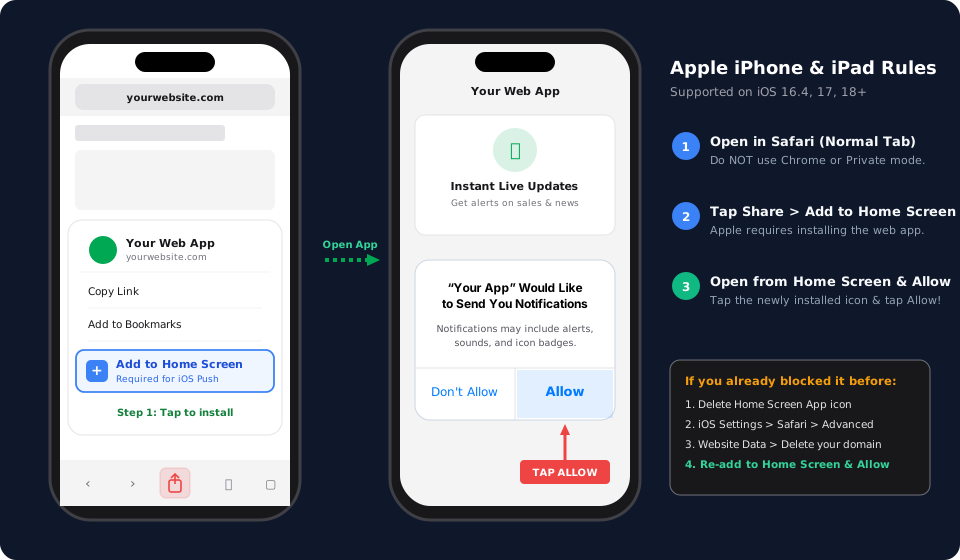
Apple runs Web Push exclusively through Home Screen Web Apps (PWA):
| Goal | Where to Go | Action |
|---|---|---|
| Quick Permission Reset | Address Bar Tune/Lock Icon | Click Reset permission ➔ Reload |
Delete Service Worker (sw.js) |
DevTools (F12) ➔ Application ➔ Service Workers |
Click Unregister |
| Purge Cache & IndexedDB | DevTools (F12) ➔ Application ➔ Storage |
Click Clear site data |
| Reset Android Mobile Browser | Chrome ➔ Settings ➔ Site settings ➔ All sites | Tap Clear & reset |
| Inspect Mobile via Computer | Desktop Chrome ➔ chrome://inspect/#devices |
Click inspect ➔ DevTools Application tab |
| Reset iOS Web Push | iPhone Home Screen | Delete PWA Icon ➔ Clear Safari Data ➔ Re-add |
| Test Notifications Safely | Regular Browser Window | Never use Incognito / Private mode |
 Notification Inbox
3